
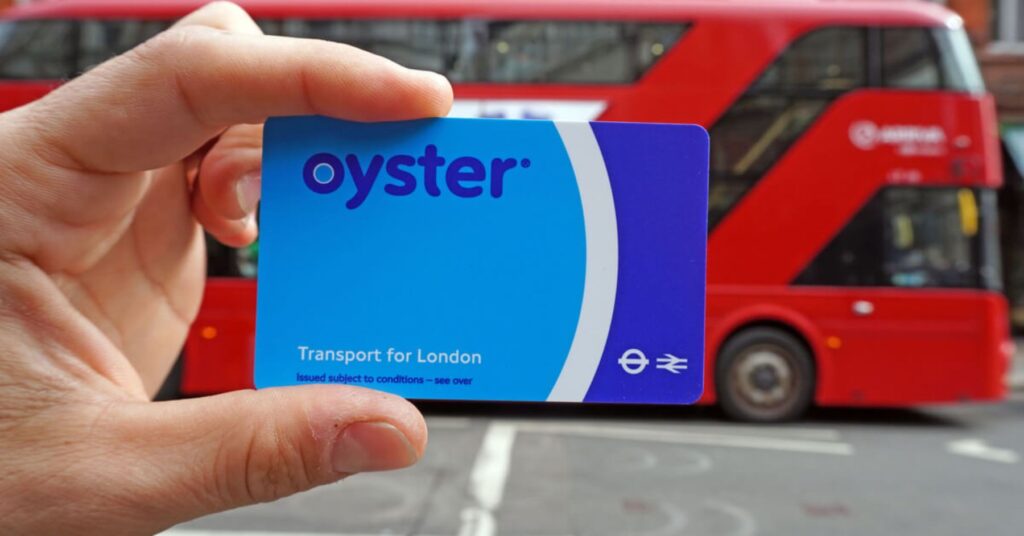
To add credit to an Oyster card, use station machines, Oyster Ticket Stops, online, or the TfL Go app; online loads are ready after ~30 minutes.
New to London’s smartcard and need a fast way to add balance? This guide shows every practical method to add pay-as-you-go credit, how long each one takes, and small tips that save time at the gates. You’ll also see simple fixes for common errors, plus caps and costs so you load the right amount the first time.
Oyster Card Top-Up Methods Explained
There are four core ways to add balance. Pick the one that fits where you are and how soon you need the credit to appear on your card.
| Method | Where/How | What To Know |
|---|---|---|
| Ticket Machine | Tube, Overground, most Elizabeth line & National Rail stations | Instant load to card; cards and contactless accepted; follow on-screen steps. |
| Oyster Ticket Stop | Newsagents and small shops signed as “Oyster Ticket Stop” | Staff process the top-up; balance loads on the spot. |
| Online Account | Contactless & Oyster account on the TfL website | Choose an amount, pay, then collect by touching a yellow reader after ~30 minutes. |
| TfL Go App | Official TfL app for iOS/Android | Top up on your phone; collect on a yellow reader after ~30 minutes. |
| Visitor Centre | Major hubs (e.g., Heathrow Terminals, King’s Cross St Pancras) | Staff can add credit and help with queries; hours vary by location. |
Step-By-Step: Add Pay As You Go Credit
At A Station Ticket Machine
- Tap your card on the round reader to start.
- Pick “Add pay as you go,” then choose an amount.
- Pay by card or cash (cash may not be available at some machines).
- Hold your card on the reader when prompted until the screen confirms the load.
That’s it—the balance is ready straight away. This is the fastest route when you’re already in a station.
At An Oyster Ticket Stop
- Ask for a pay-as-you-go top-up and say the amount you want.
- Pay the shop; the clerk will load the credit to your card.
- Check the receipt or shop display for the new balance.
Look for the blue Oyster sign outside corner shops and newsagents across London.
With The TfL Go App
- Open the app and link your card if you haven’t already.
- Choose Top up, pick an amount, and pay.
- After about 30 minutes, touch your card on any yellow reader during a journey to collect the load.
The app also shows your balance and recent journeys, handy for tracking spend and spotting incomplete touches.
Online With A TfL Account
- Sign in to your Contactless & Oyster account.
- Select your card, choose an amount, and pay.
- After about 30 minutes, “pick up” the load by touching a yellow reader during travel.
Online and app loads work the same way—the 30-minute wait lets the network send your order to readers across London. No pickup? Your card won’t change until you touch a reader.
How Much Should You Add?
Think about your day’s travel pattern, the zones you’ll cross, and daily caps. A cap is the most you’ll pay in a day on pay-as-you-go. Once you hit it, more travel that day doesn’t cost extra. That means you don’t need to over-load the card for regular commuting days inside the same zones.
Riders who plan a busy day across zones can add enough to reach the cap and a small buffer. Light travel days might only need the fare for two rides. If you’re unsure, start modest, as you can top up again in seconds at the next station.
Auto Top-Up: Set A Safety Net
If you dislike manual loads, set auto top-up. Pick a trigger level. When your balance drops to that level at a yellow reader, the system adds a fixed amount to your card and charges the linked payment method.
The trigger and reload amounts use set values. Many riders choose the standard trigger and a reload that roughly matches a day or two of travel. One load can carry you through a busy day without stopping at a machine.
Top-Up Timing: When Credit Appears
Station machines and ticket stops add balance immediately. App and web orders show on your card after you touch a yellow reader, with a short delay before pickup becomes available. Plan a quick tap near your start point if you ordered online a few moments before heading out.
Choosing A Method: Quick Scenarios
Need It Right Now
Use a station machine or a Ticket Stop. The money lands on the card at once, and you can walk straight to the gates.
Planning Later Today
Use the app or the website while you sip coffee. By the time you’re at the station, your order should be ready to collect on a reader.
Helping A Family Member
Link their card to your account (with their consent) and add credit for them. They’ll collect the load on their next tap at a reader.
Caps, Zones, And Smart Loading
Caps keep spend predictable across buses, Tube, DLR, Overground, trams, and most Elizabeth line services in the zones. A weekday with morning and evening rides across central zones tends to reach the cap faster than a light weekend. If you mix modes, the cap calculation still applies. So you can load with the cap in mind and avoid extra top-ups during the day.
Visitors staying near Zone 1 can start with a modest amount, then add more if they begin taking longer trips. Commuters crossing several zones daily may prefer auto top-up to dodge low-balance hiccups at the gates.
Avoid These Common Pitfalls
Forgetting To Collect An Online Load
Web and app orders sit in the system until you touch your card on a yellow reader during a journey. No touch, no change on the card.
Using An Older Card With The App
Some first-generation cards don’t pair with the app. Swap for a newer card to manage loads on your phone.
Not Touching Out
On rail modes you must touch in and out. Skip the exit touch and you may see a higher charge, which eats through your balance faster.
Sharing One Card Mid-Journey
Two people can’t use one card for the same ride. That leads to gate errors and messy charges.
How Much Does A Typical Day Cost?
Prices change from time to time, and caps vary by zones and peak/off-peak timing. The simplest play: load enough to cover the cap for your zones, plus a small cushion. If you ride less, the unused balance stays on the card for next time.
Troubleshooting Quick Fixes
| Symptom | Likely Cause | What To Do |
|---|---|---|
| Online load not on card | Didn’t collect on a yellow reader | Start a journey and touch in; wait half a minute at the reader if prompted. |
| App won’t link card | Older card version | Replace the card, then link again in the app. |
| Higher-than-expected charge | Missed touch out or route via a different zone | Always touch in and out; check your journey history and request a fix if eligible. |
| Auto top-up didn’t fire | Balance never hit the trigger at a reader | Lower the trigger or make one small trip to activate the reload. |
| Card blocked at gate | Multiple quick taps or card clash in your wallet | Present only one card; hold it flat to the reader until the beep and green light. |
Visitor Tips And Handy Alternatives
Short stay and don’t want to manage loads? You can pay with a contactless bank card or phone wallet on the same readers. Daily and weekly caps still apply on those methods. If you already hold a Visitor smartcard bought abroad, it comes preloaded with credit and can be topped up in London like a standard card.
Simple Rules That Keep Things Smooth
- Touch in on every rail ride, touch out at the end; buses and trams need only a touch in.
- Keep your Oyster separate from contactless cards to prevent “card clash.”
- Check your balance on the app, website, or any station machine before a long trip.
- Use auto top-up if you often forget to load; the system handles the timing for you.
- Report a lost card if it’s registered; remaining balance can be moved to a replacement.
Quick Reference: Best Method For Your Situation
Here’s a fast picker to end on:
- Already at a station: Ticket machine for instant balance.
- Near a corner shop: Look for an Oyster Ticket Stop sign.
- Planning the commute later today: App or website, then collect on your first tap.
- Forgetful loader: Turn on auto top-up and ride stress-free.
- Staying a few days: Load with the day cap in mind so you don’t overpay.
Learn the basics of pay-as-you-go on the official TfL page (Oyster pay as you go) and see official guidance for in-app payments on Pay in TfL Go.